
Blog
IPTV for Smart TV: Complete Beginner’s Setup Guide

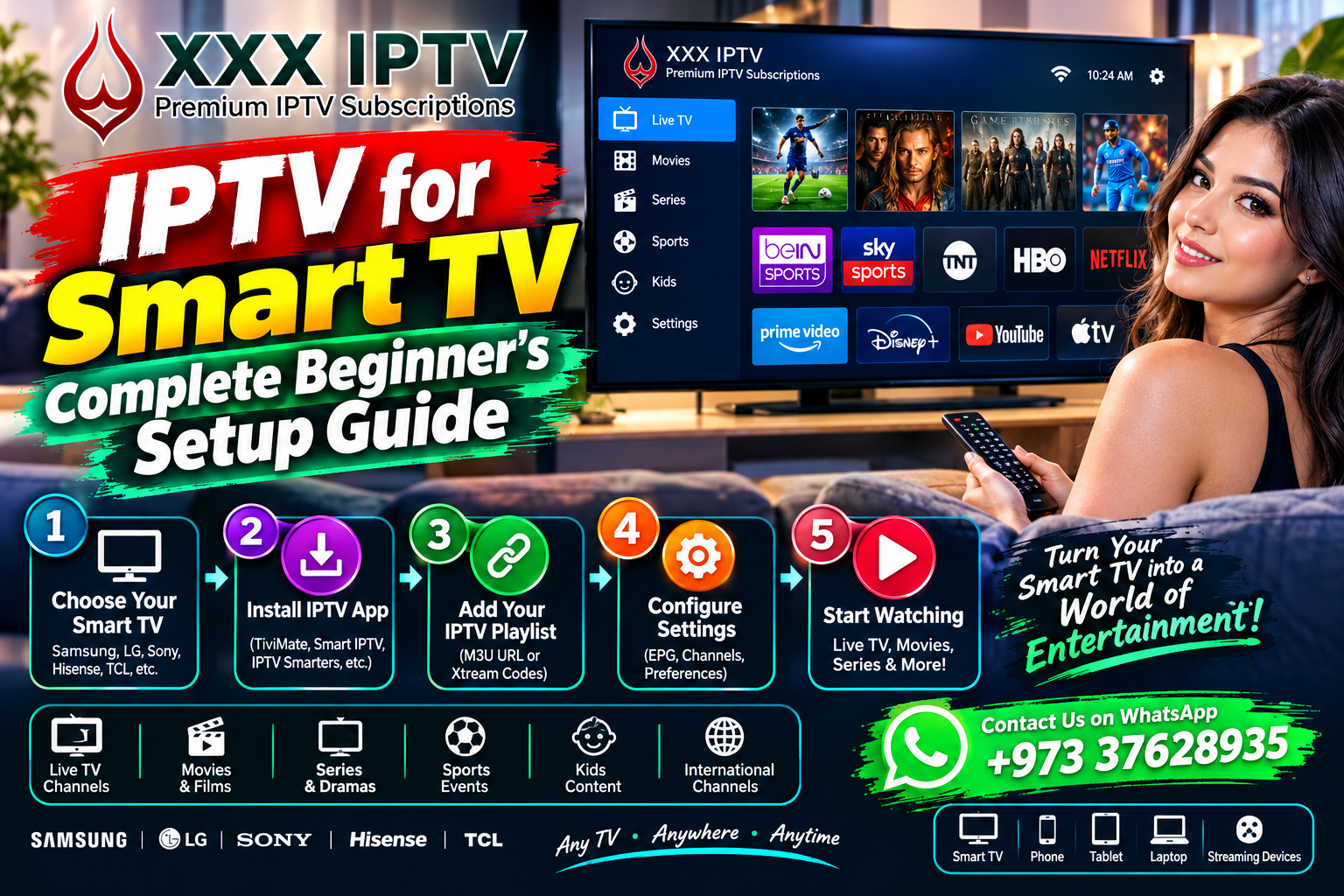
IPTV for Smart TV: A Complete Beginner’s Guide
Smart TVs have changed the way people watch television by combining traditional TV features with internet-based streaming. Instead of using a television only for cable or satellite channels, users can access a wide range of online video services directly through compatible Smart TV applications.IPTV for Smart TV
IPTV is another option available on supported Smart TVs. IPTV, or Internet Protocol Television, uses internet-based networks to deliver television and video content to a compatible application or player.
In this guide, you will learn what IPTV for Smart TV means, how it works, what you need before setup, how to install a compatible application, and how to troubleshoot common problems.
What Is IPTV for Smart TV?
IPTV for Smart TV means watching IPTV content through a compatible application on an internet-connected Smart TV.
Instead of receiving content only through traditional broadcasting methods, the IPTV service sends supported video content through the internet. Your Smart TV connects to the service through an appropriate application, and the application displays the available content on your television.
The channels, movies, series, and other programming available depend on the IPTV provider and the rights or authorization it has to distribute that content.
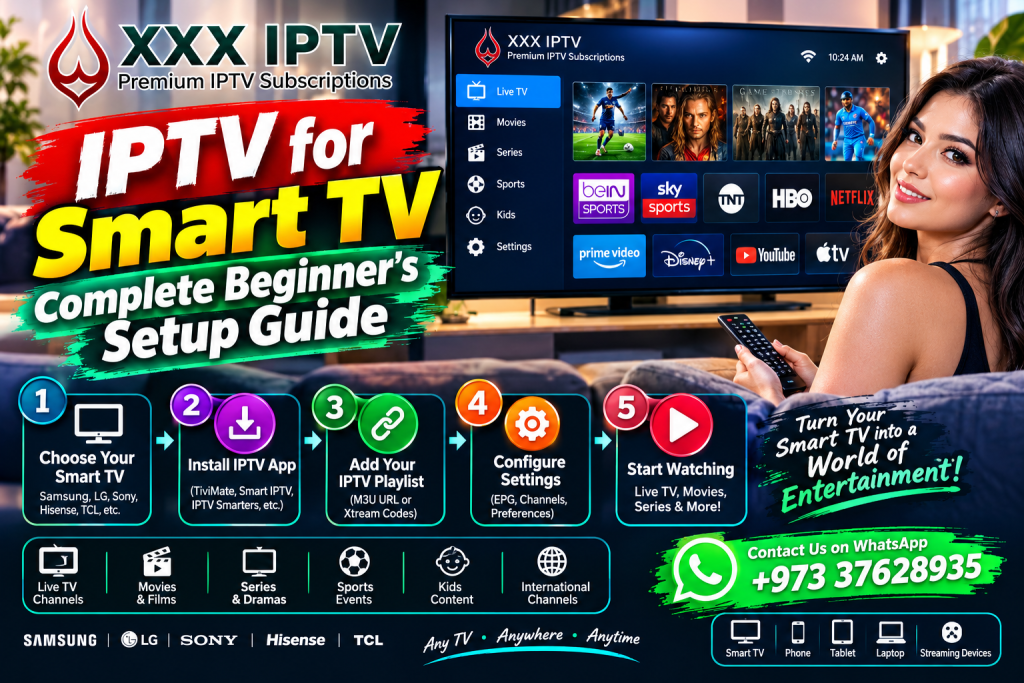
How Does IPTV Work on a Smart TV?
The basic process is relatively simple.
First, your Smart TV connects to the internet using Wi-Fi or, on supported models, an Ethernet cable. You then install or open a compatible IPTV application. Depending on the service, you may enter account information, a playlist, or another type of access information supplied by the provider.
When you select available content, the application communicates with the service through the internet and receives the video stream. Your television then processes and displays that stream on the screen.
In simple terms:
IPTV Service → Internet → Smart TV App → Television Screen
A stable internet connection is therefore an important part of the viewing experience.
Which Smart TVs Support IPTV?
IPTV support depends on the operating system, television model, application availability, and IPTV service.
Many modern Smart TV platforms have application stores where users can search for compatible streaming applications.
Samsung Smart TV
Samsung Smart TVs use their own Smart TV platform and provide access to supported applications through the television’s app environment.
The availability of IPTV applications can vary by model, region, and application provider. Always check the current application availability on your specific television.
LG Smart TV
LG Smart TVs also support various streaming applications. Compatible IPTV applications may be available depending on the TV model, operating system, region, and application developer.
Android TV and Google TV
Android TV and Google TV devices can support a broad range of applications through their supported app stores. This can make them flexible options for users who want to use compatible IPTV applications.
What Do You Need for IPTV on Smart TV?
Before setting up IPTV, make sure you have the following:
- A compatible Smart TV.
- A stable internet connection.
- Access to an authorized IPTV service.
- A compatible IPTV application or player.
- Required account or playlist information.
- A television connected to your home network.
You should also check whether the IPTV application is officially supported in your country and on your particular TV model.
How to Set Up IPTV on Smart TV
The exact setup procedure varies between Smart TV brands and IPTV services, but the general process is similar.
Step 1: Connect Your Smart TV to the Internet
Open your television’s network settings and connect it to your Wi-Fi network. If your TV supports Ethernet, you can also use a wired connection.
After connecting, test the internet connection to make sure the television is online.
Step 2: Open the TV App Store
Go to the application store available on your Smart TV. Search for an IPTV application that is compatible with your television and supported by your service.
Step 3: Install the Compatible IPTV App
Select the appropriate application and install it. Use official application sources whenever possible and follow the application’s instructions.
Step 4: Open the Application
Launch the IPTV application from your Smart TV’s application menu.
Some applications may provide their own login system, while others may require playlist or service information.
Step 5: Enter Your IPTV Details
Enter the account information or other access details supplied by your IPTV provider.
Make sure the information is entered correctly. If you receive an error, check the details and consult the provider’s official support instructions.
Step 6: Start Streaming
After successful setup, browse the content available through your service and select a channel or video.
What Internet Speed Is Needed for Smart TV IPTV?
The required internet speed depends on the video resolution, streaming service, network conditions, and number of devices using your connection.
Standard-definition video generally requires less bandwidth than HD, while higher-resolution formats such as 4K require substantially more bandwidth and a stable connection.
Speed alone is not everything. Wi-Fi signal strength, router performance, network congestion, and the quality of the source stream can also affect playback.
How to Improve IPTV Performance on Smart TV
If your IPTV stream is buffering or stopping frequently, several basic steps may help.
Check Your Internet Connection
Run a speed test and check whether other devices are using significant bandwidth at the same time.
[H3] Improve Wi-Fi Signal
If your television is far from the router, the Wi-Fi signal may be weaker. Moving the router closer or reducing obstacles can help.
Use Ethernet When Available
If your Smart TV has an Ethernet port and your home setup allows it, a wired connection can provide a more consistent network connection.
Restart Your Devices
Restarting the Smart TV and router can sometimes resolve temporary network or application problems.
Keep Applications Updated
Check for updates to the IPTV application and your Smart TV software when updates are available.
Common IPTV Problems on Smart TV
Users may sometimes experience buffering, login errors, application crashes, missing content, or connection problems.
These issues can have different causes. The problem may be related to your internet connection, the application, the television, or the IPTV service itself.
If basic troubleshooting does not solve the problem, contact the application’s or service provider’s support team.
Is IPTV on Smart TV Legal?
IPTV technology itself is a method of delivering video through internet networks. The legality of a particular IPTV service depends on the content being distributed, the provider’s authorization, copyright requirements, and applicable local laws.
Before subscribing, users should verify that the service has the necessary rights to distribute the content it offers.
This is particularly important for users in different markets because laws and content licensing arrangements can vary between countries.
Frequently Asked Questions About IPTV for Smart TV
Can I watch IPTV directly on a Smart TV?
Yes, if your Smart TV supports a compatible IPTV application and the IPTV service supports your device.
Do I need a Firestick if I have a Smart TV?
Not necessarily. If your Smart TV supports the required application, you may be able to use IPTV directly on the television.
Why is IPTV buffering on my Smart TV?
Buffering can be caused by weak Wi-Fi, network congestion, insufficient connection performance, application problems, or issues with the streaming service.
Can I use IPTV on Samsung and LG Smart TVs?
Compatible IPTV applications may be available on supported Samsung and LG models. Availability can vary by model, region, and application.
Can I use IPTV without Wi-Fi?
Yes, if your Smart TV supports a wired Ethernet connection and your IPTV setup supports it. An internet connection is still required.
Final Thoughts
IPTV for Smart TV provides a convenient way to access authorized internet-based television and video content directly through a compatible television. The basic requirements are a supported Smart TV, reliable internet connection, compatible application, and access to an authorized IPTV service.
Before subscribing, check your TV model, application availability, service terms, device compatibility, and content authorization.
For information about compatible Smart TVs, IPTV setup, or subscription options from XXXIPTV.shop, contact us through WhatsApp at +973 37628935.
About XXX IPTV
XXXIPTV.shop provides information about IPTV viewing options for compatible devices. Customers should confirm device compatibility, service availability, applicable terms, and content authorization before subscribing.